기초적인 Flutter 화면을 구성하는 패턴
- 'package:flutter/material.dart' 임포트
- MaterialApp으로 메인 위젯 트리 감싸기
- title과 theme과 같은 속성 설정
- home : 속성을 주 페이지로 정의
- Scaffold:
- 앱의 시각적 레이아웃에 대한 기본 구조 제공
- appBar 및 body와 같은 속성 설정
- 레이아웃 요소 제공 (예: AppBar, Drawer, BottomNavigationBar)
- 각 구성요소는 또 다른 위젯으로 각각의 사용법은 이후에 정리하기로 함
- body에 실제 화면 관련 위젯 정의
- 레이아웃 요소 제공 (예: AppBar, Drawer, BottomNavigationBar)
main4.dart 만들기
1. import 하면 fluuter 뜸 그리고 material 까지 치면 import 완성 됨
2. // 코드의 시작점 만들기
// 코드의 시작점
void main() {
  runApp(MyApp());
}
3. stl + enter --> stateLess (정적) 하면 기본파일이 생성된다.
stl + enter --> stateLess (정적)
4. 만들어짐
@override
  Widget build(BuildContext context) {
    // 앞으로 MaterialApp 안에서 위젯을 선언해 보자.
    return MaterialApp()
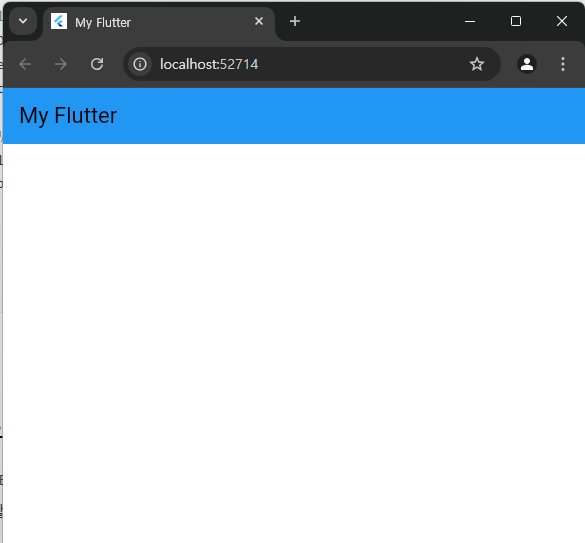
main4.dart
import 'package:flutter/material.dart';

// 코드의 시작점
void main() {
  runApp(MyApp());
}

// 상태 기반 UI

// stl + enter --> stateLess (정적)

class MyApp extends StatelessWidget {
  const MyApp({super.key});

  @override
  Widget build(BuildContext context) {
    // 앞으로 MaterialApp 안에서 위젯을 선언해 보자.
    return MaterialApp(
      debugShowCheckedModeBanner: false,
      title: 'My Flutter',
      theme: ThemeData(
        colorScheme: ColorScheme.light(primary: Colors.redAccent),
        primarySwatch: Colors.red
      ),
      // 시각적 레이아웃 구성요소를 잡아 주는 녀석이다.
      home: Scaffold(
        appBar: AppBar(title: Text('My Flutter'), backgroundColor: Colors.blue,),
      ),
    );
  }
}
MaterialApp의 주요 property와 사용법
- theme: 앱의 전체 테마, 색상 구성 등이 포함 (예, theme: ThemeData(primarySwatch: Colors.red))
- home: 앱이 시작할 때 보여질 기본 경로 또는 위젯
main5.dart
import 'package:flutter/material.dart';

void main() {
  runApp(MyHome());
}

class MyHome extends StatelessWidget {
  const MyHome({super.key});

  @override
  Widget build(BuildContext context) {
    return MaterialApp(
      theme: ThemeData(primarySwatch: Colors.orange),
      debugShowCheckedModeBanner: false,
      home: Scaffold(
        appBar: AppBar(
          title: Text('Co Burn Studio'),
          backgroundColor: Colors.orange,
        ),
        body: Center(
          child: Padding(
            padding: EdgeInsets.all(120.0),
            child: TextField(
              decoration: InputDecoration(labelText: '입력요망'),
            ),
          ),
        ),
        floatingActionButton: FloatingActionButton(
          elevation: 5.0,
          child: Icon(Icons.add),
          // () {} <-- 익명 함수 (dart 익명 클래스 개념은 없다)
          onPressed: () {
            print('11111111111111111');
          },
        ),
        drawer: Drawer(
          child: ListView(
            children: [
              ListTile(
                title: Text('Item 1'),
              ),
              ListTile(
                title: Text('Item 2'),
              ),
            ],
          ),
        ),
        // persistentFooterButtons: [
        //   Icon(Icons.settings),
        //   SizedBox(
        //     width: 50,
        //   ),
        //   Icon(Icons.person),
        // ],
        bottomNavigationBar: BottomNavigationBar(
          currentIndex: 0,
          fixedColor: Colors.green,
          backgroundColor: Colors.red,
          items: [
            BottomNavigationBarItem(
              label: '검색',
              icon: Icon(Icons.search_rounded),
            ),
            BottomNavigationBarItem(
              label: '홈',
              icon: Icon(Icons.home),
            ),
            BottomNavigationBarItem(
              label: 'My',
              icon: Icon(Icons.person),
            ),
          ],
        ),
      ),
    );
  }
}

main6.dart
import 'dart:js_interop';

import 'package:flutter/material.dart';

void main() {
  runApp(MyHome2());
}

class MyHome2 extends StatelessWidget {
  const MyHome2({super.key});

  @override
  Widget build(BuildContext context) {
    return MaterialApp(
      debugShowCheckedModeBanner: false,
      home: Scaffold(
        appBar: AppBar(
          centerTitle: true,
          title: Text('tenCoding'),
          actions: [
            IconButton(
              onPressed: () {},
              icon: Icon(Icons.add),
            ),
            IconButton(
              onPressed: () {},
              icon: Icon(Icons.search),
            ),
          ],
          leading: IconButton(onPressed: () {}, icon: Icon(Icons.menu)),
          elevation: 20.0,
        ),
      ),
    );
  }
}

- Stack 위젯
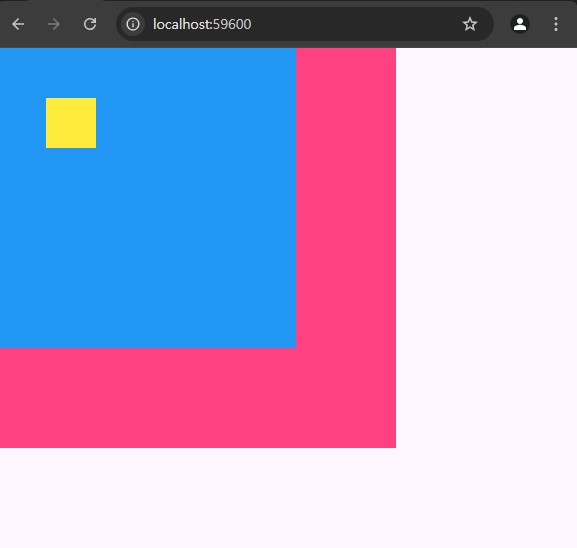
- Row 위젯은 내부 위젯을 수평으로 나열하는 위젯, Column 위젯은 내부 위젯을 수직으로 나열하는 위젯
- Stack 위젯은 내부 위젯을 겹쳐서 나열하는 위젯
main7.dart
import 'package:flutter/material.dart';

void main() {
  runApp(MyApp7());
}

class MyApp7 extends StatelessWidget {
  const MyApp7({super.key});

  @override
  Widget build(BuildContext context) {
    return MaterialApp(
      debugShowCheckedModeBanner: false,
      home: Scaffold(
        body: Stack(
         children: [
           Container(
             width: 400,
             height: 400,
             decoration: BoxDecoration(
               color: Colors.pinkAccent
             ),
           ),

           Container(
             width: 300,
             height: 300,
             decoration: BoxDecoration(
                 color: Colors.blue
             ),
           ),

           Positioned(
             top: 50,
             left: 50,
             child: Container(
               width: 50,
               height: 50,

               decoration: BoxDecoration(
                   color: Colors.yellow
               ),
             ),
           )


         ],
        ),
      )
    );
  }
}
Align 위젯
- 자식 위젯을 특정 위치에 정렬하기 위해 사용하는 위젯
- 특정 위치에 위젯을 배치하기 위한 위젯은 Align과 Positioned가 있지만,
- Positioned는 Stack 안에서만 사용할 수 있고, Align은 독립적으로도 사용 가능함
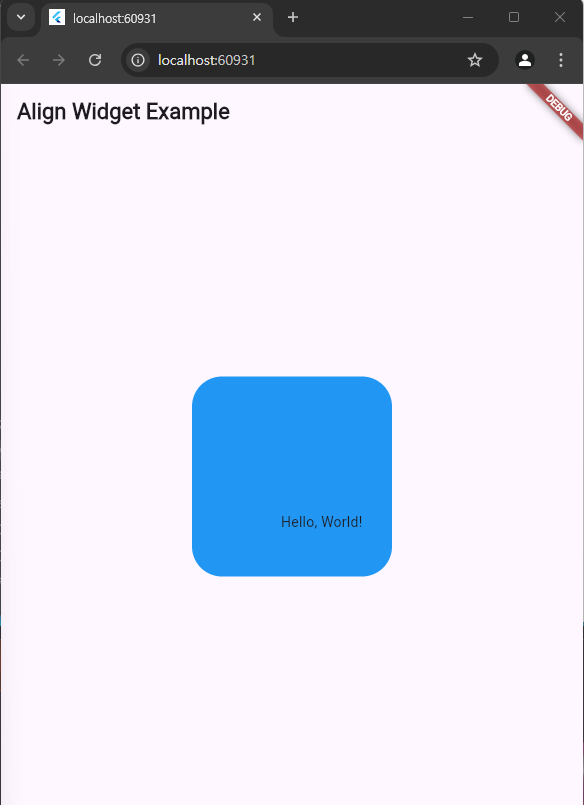
- Align에서 자식 위젯의 위치는 alignment 속성으로 설정
- alignment 속성값은 주로 Alignment 클래스 설정값 (예: Alignment.bottomRight, 오른쪽 하단부에 위치)
Alignment 주요 값
- Alignment.topLeft: 위젯을 부모 위젯의 왼쪽 상단 모서리에 맞춤
- Alignment.topCenter: 위젯을 부모 위젯의 상단 중앙에 맞춤
- Alignment.topRight: 위젯을 부모 위젯의 오른쪽 상단 모서리에 맞춤
- Alignment.centerLeft: 위젯을 부모 위젯의 중앙 왼쪽에 맞춤
- Alignment.center: 위젯을 부모 위젯의 중앙에 맞춤
- Alignment.centerRight: 위젯을 부모 위젯의 중앙 오른쪽에 맞춤
- Alignment.bottomLeft: 위젯을 부모 위젯의 왼쪽 하단 모서리에 맞춤
- Alignment.bottomCenter: 위젯을 부모 위젯의 하단 중앙에 맞춤
- Alignment.bottomRight: 위젯을 부모 위젯의 오른쪽 하단 모서리에 맞춤
- Alignment(x, y): 위젯을 (x, y)로 지정된 점에 맞춤. (-1, -1)은 상단 좌측 모서리, (0, 0)은 중앙, (1, 1)은 하단 우측 모서리를 나타냄

main8.dart
import 'package:flutter/material.dart';

void main() {
  runApp(MyApp8());
}

class MyApp8 extends StatelessWidget {
  const MyApp8({super.key});

  @override
  Widget build(BuildContext context) {
    return MaterialApp(
        home: Scaffold(
          appBar: AppBar(
            title: Text(
              'Align Widget Example',
              style: TextStyle(fontWeight: FontWeight.bold),
            ),
          ),
          body: Center(
            child: Container(
              // color: Colors.blue,
              height: 200,
              width: 200,
              decoration: BoxDecoration(
                  color: Colors.blue,
                  borderRadius: BorderRadius.all(Radius.circular(30.0),)
              ),
              child: Align(
                // alignment: Alignment.bottomCenter,
                alignment: Alignment(0.5, 0.5),
                child: Text('Hello, World!'),
              ),
            ),
          ),
        )
    );
  }
}
Expanded 위젯
- 위젯 크기를 수치로 설정하지 않고, 비율로 설정할 때 사용하는 위젯
- 화면 사이즈가 다양할 수 있기 때문에, 수치로 위젯 크기를 설정할 경우, 여러 화면 사이즈 대응이 어려울 수 있음
- 따라서, 비율로 위젯 크기를 설정하는 방법에 대해 알아둘 필요가 있음
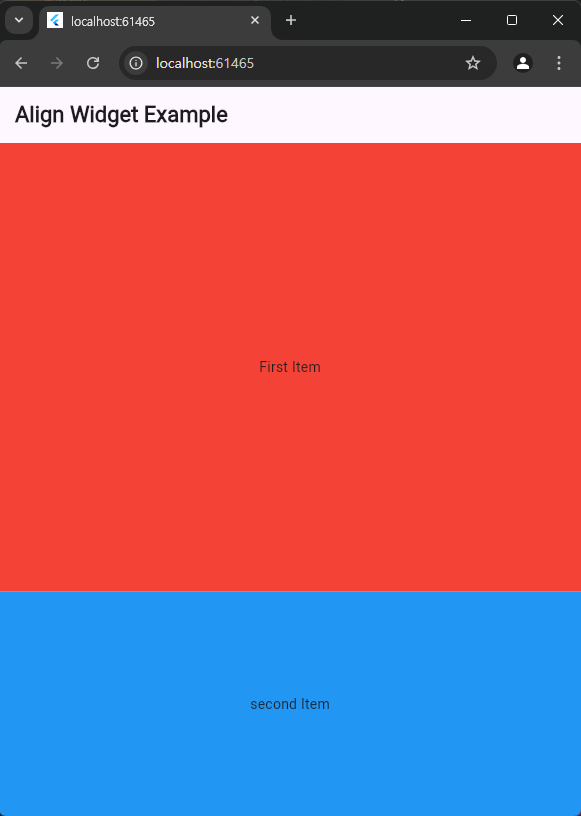
- Expanded 위젯의 flex 속성은 각 자식 위젯이 다른 자식 위젯과 비교하여 차지해야 하는 공간의 양을 지정하는 데 사용
- 다음 예제에서는 첫 번째 Expanded 위젯의 flex 속성을 1로, 두 번째 Expanded 위젯의 flex 속성을 2로 설정
- 첫 번째 Expanded 위젯은 Column의 1/3, 두 번째 Expanded 위젯은 Column의 2/3 공간을 차지하며 화면에 표시됨
main9.dart
import 'package:flutter/material.dart';

void main() {
  runApp(MyApp9());
}

class MyApp9 extends StatelessWidget {
  const MyApp9({super.key});

  @override
  Widget build(BuildContext context) {
    return MaterialApp(
      debugShowCheckedModeBanner: false,
        home: Scaffold(
          appBar: AppBar(
            title: Text(
              'Align Widget Example',
              style: TextStyle(fontWeight: FontWeight.bold),
            ),
          ),
          body: SizedBox(
            width: double.infinity,
            child: Column(
              children: [

                Expanded(
                  flex: 2,
                  child: Container(
                    color: Colors.red,
                    child: Center(child: Text('First Item')),
                  ),
                ),

                Expanded(
                  flex: 1,
                  child: Center(
                    child: Container(
                      color: Colors.blue,
                      child: Center(child: Text('second Item')),
                    ),
                  ),
                )
              ],
            ),
          ),
        )
    );
  }
}
'Flutter' 카테고리의 다른 글
| 2024.11.07 플러터 기본기 다지기 - 2 (폰트 설정, 로컬 이미지) (2) | 2024.11.07 |
|---|---|
| 2024.11.07 flutter 플러터 기본기 다지기 - 1 (0) | 2024.11.07 |
| 2024. 11. 05 플러터 기본기 다지기 - 1 (4) | 2024.11.05 |
| 2024. 11. 05 Flutter UI 프레임워크 + Chat gpt 사용 방법 (2) | 2024.11.05 |
| 2024.09.06 Flutter dart(함수, 메서드) (0) | 2024.09.06 |